Academics Module
Plan, schedule, and manage the core educational structure of your school.
Strict Hierarchy: The system enforces a specific
Top-Down flow: Classes > Sections > Subjects > Assign Teachers > Timetables. You cannot build a
timetable if subjects aren't assigned to teachers first.
1. Core Infrastructure Setup
Define the foundational grade levels, divisions, and curriculum.
- Create Sections: Go to Academics > Sections (e.g., A, B, C, Science, Arts). Sections are reusable blocks linked to Classes.
- Create Classes: Go to Academics > Classes. During creation, map the allowed Sections to this Class.
- Create Subjects: Go to Academics > Subjects. Define Subjects (Theory vs Practical) and unique codes (e.g., ENG-101) which reflect on final report cards.
2. The Assignment Engine
The system requires precise mapping to determine who teaches what, and who governs which class.
Assign Class Teachers
Class Teachers hold ultimate authority over a section's Daily Attendance.
- Go to Academics > Assign Class Teacher.
- Select the Target Class & Section, then assign one or more staff members as the Class Teacher.
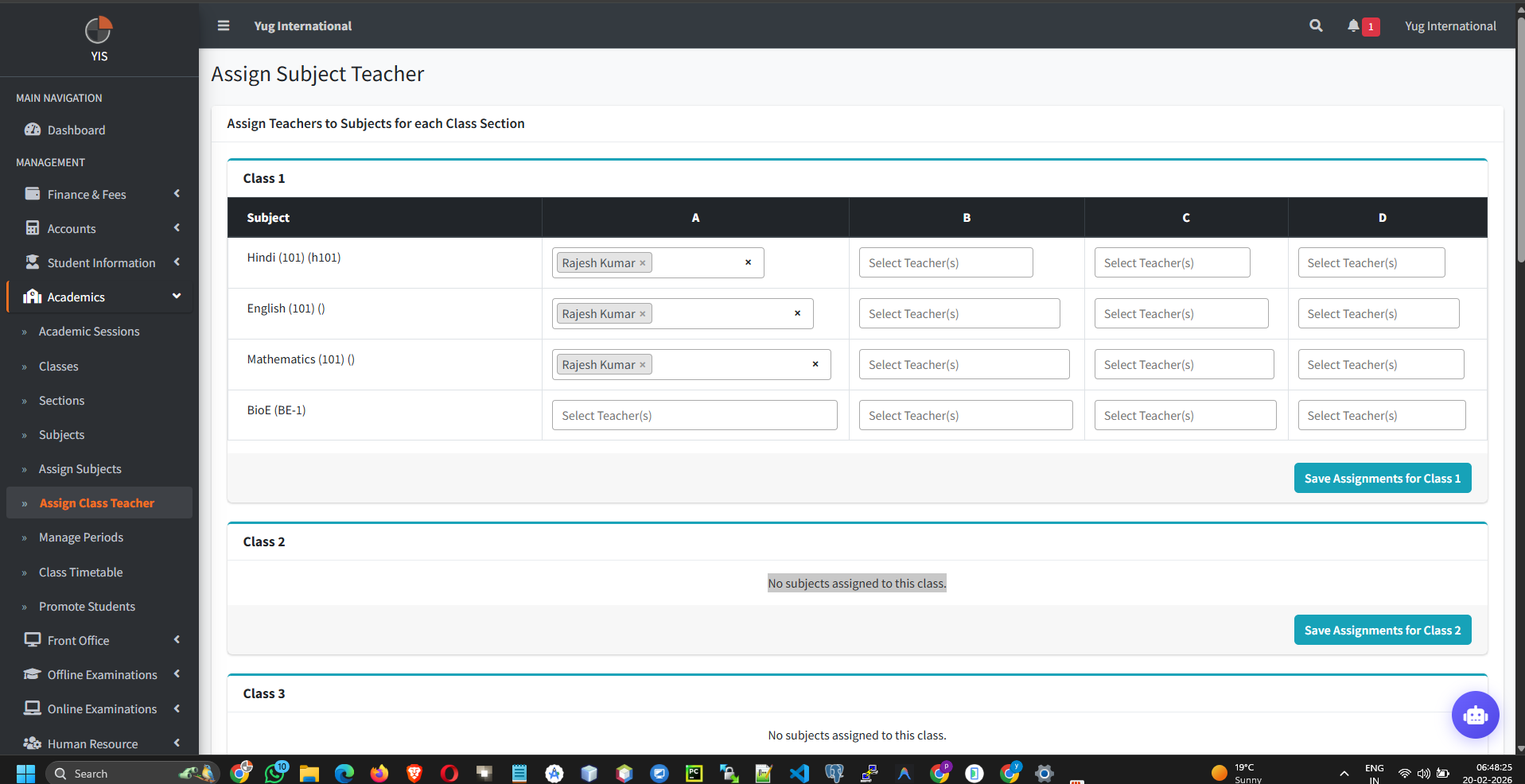
Assign Subject Teachers
This links the curriculum to the staff, unlocking the Timetable builder for them.
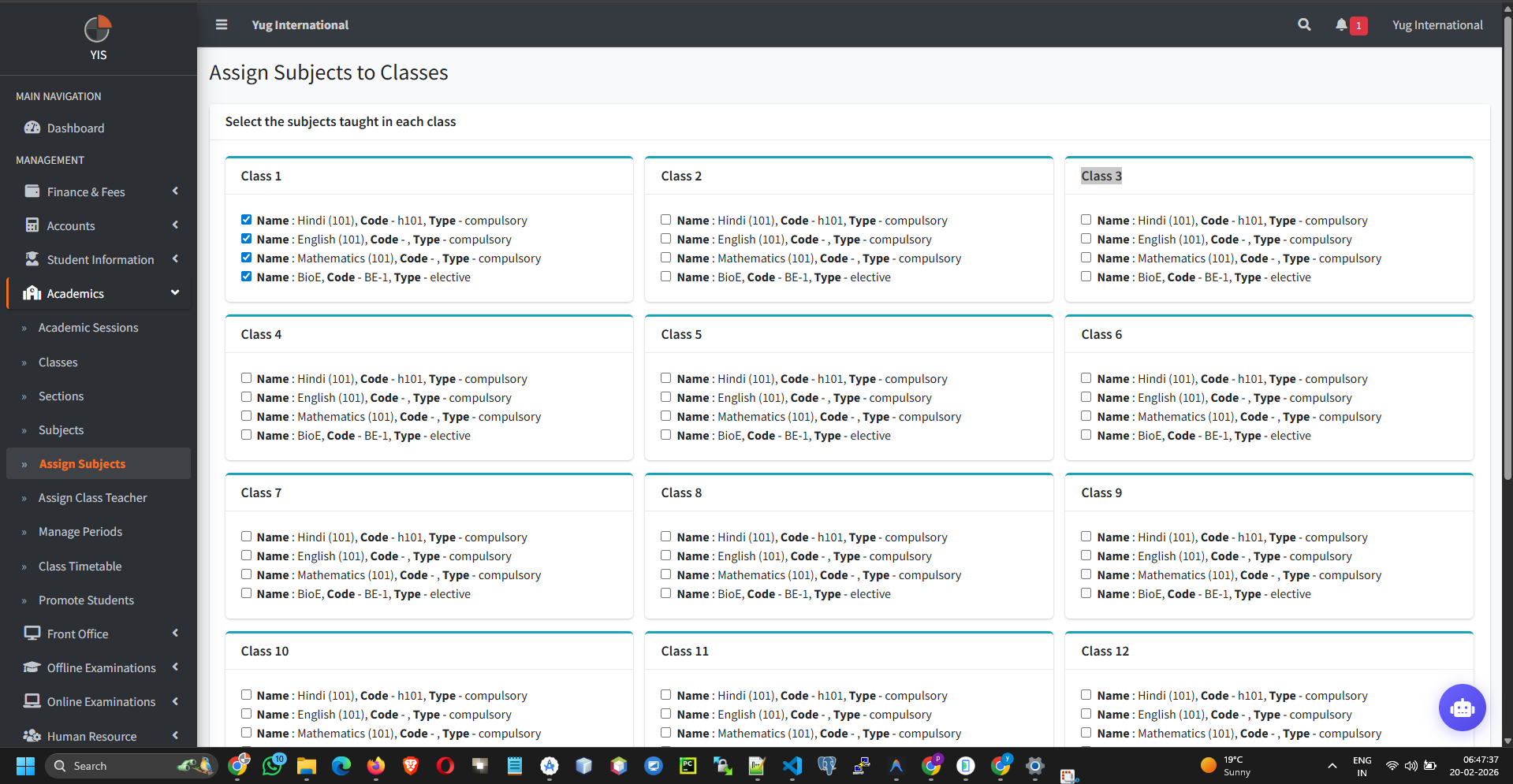
- Go to Academics > Assign Subjects.
- Select Class & Section, then map individual Subjects to specific Staff members.
3. Dynamic Timetables
Create collision-free weekly schedules.
- Navigate to Academics > Class Timetable.
- Select the Class and Section to render the Monday-Sunday grid.
- Click Add New on a specific day matrix.
- The system will ONLY allow you to select Subjects and Teachers that were mapped in the Assignment Engine (Step 2).
- Input the exact Start and End times.
Mobile Sync: The moment a timetable is saved, it
instantly syncs to the Teacher App (showing their daily periods) and the Student App (showing their daily
schedule).
4. Promotions (End of Year)
Safely transferring students to the next academic year without destroying their historical data.
WARNING: Never manually
edit a student's profile to change their class at the end of the year. This action will detach them from
historic fee & exam ledgers.
- Go to Academics > Promote Students.
- Select the Current Session (e.g., 2025-2026) and current Class/Section.
- Select the Promote To Session (e.g., 2026-2027) and the target Class/Section.
- Check off the students who passed. (Unchecked students will remain in the prior session as failed).
- Click Promote.