Biometric Integration
Connect biometric attendance devices to automate student and staff attendance tracking using ZKTeco ADMS protocols.
1. Device Registration & ADMS Protocol
The system natively supports ZKTeco devices connected via ADMS (Automatic Data Master Server) / Push Protocol.
- Go to Settings & Billing > Biometric Devices.
- Click Add Device.
- Define the IP Address, Port, and importantly, the Direction (`In`, `Out`, or `Auto`). This parameter informs the attendance engine whether the punch signifies a morning arrival or an afternoon departure.
Network Setup: Because ADMS operates on a "Push"
architecture, the ZKTeco device actively sends data to your server. Ensure the device has outbound internet
access allowing it to hit your domain.
2. Web Control Panel & Agent Commands
You can execute remote actions directly from the Web App to the device memory.
- Click the Control Panel icon next to a registered device.
- Remote Commands (e.g., Reboot, Clear Logs): When you trigger a command, the `BiometricDeviceController` creates a `BiometricCommand` record with a `pending` status. The Biometric Agent installed on your local network will automatically poll this queue, execute the command on the physical hardware, and return the output.
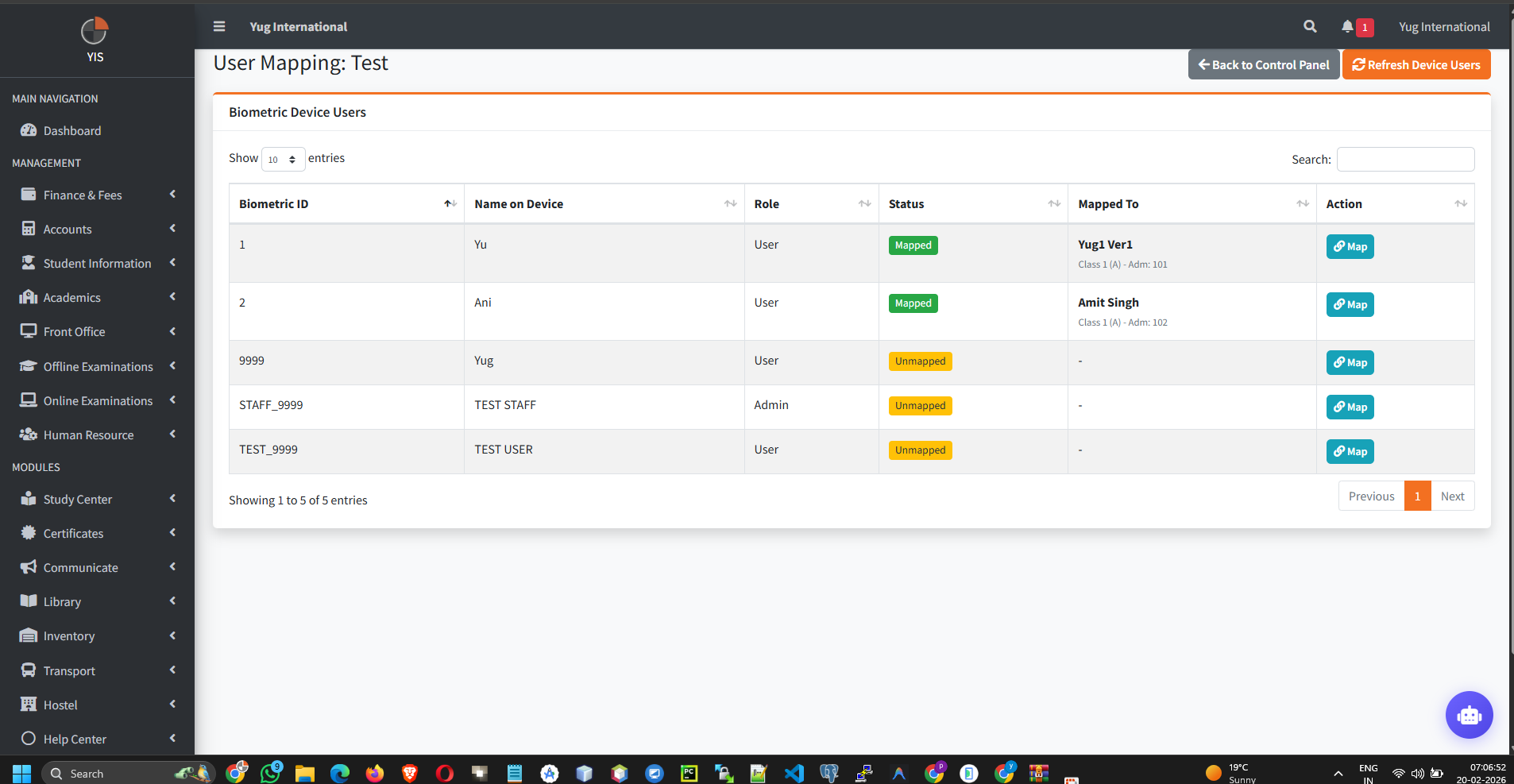
3. User Mapping (Critical)
Biometric devices generate raw numeric IDs (e.g., `1001`). The system must map these to actual Staff and Student Models.
- Go to Biometric Devices > Mapping.
- The left column queries the database for `BiometricDeviceUser` records (raw IDs pulled from the machine).
- The right column allows you to search the `Staff` or `Student` database using AJAX.
- Mapping Logic: When mapped, the controller wipes any existing mappings for that specific Biometric ID to prevent duplicate bindings, then saves the ID directly to the `Staff` or `Student` table.
Unmapped Logs: If a fingerprint punch is received but its
ID is not mapped to an active User, the attendance engine will ignore it, resulting in an "Absent" mark for
that individual.
4. Cloud Template Portability
You can seamlessly transfer registered fingerprints between multiple physical devices.
- Use the Export Templates function. The `BiometricDeviceController` compiles all base64 `template_data` for your school into a JSON file.
- Use the Import Templates function to upload this JSON. The system uses an `updateOrCreate` database query to safely bulk-insert the physical fingerprint data, prepping it for push to a new terminal.