Orders & Invoices
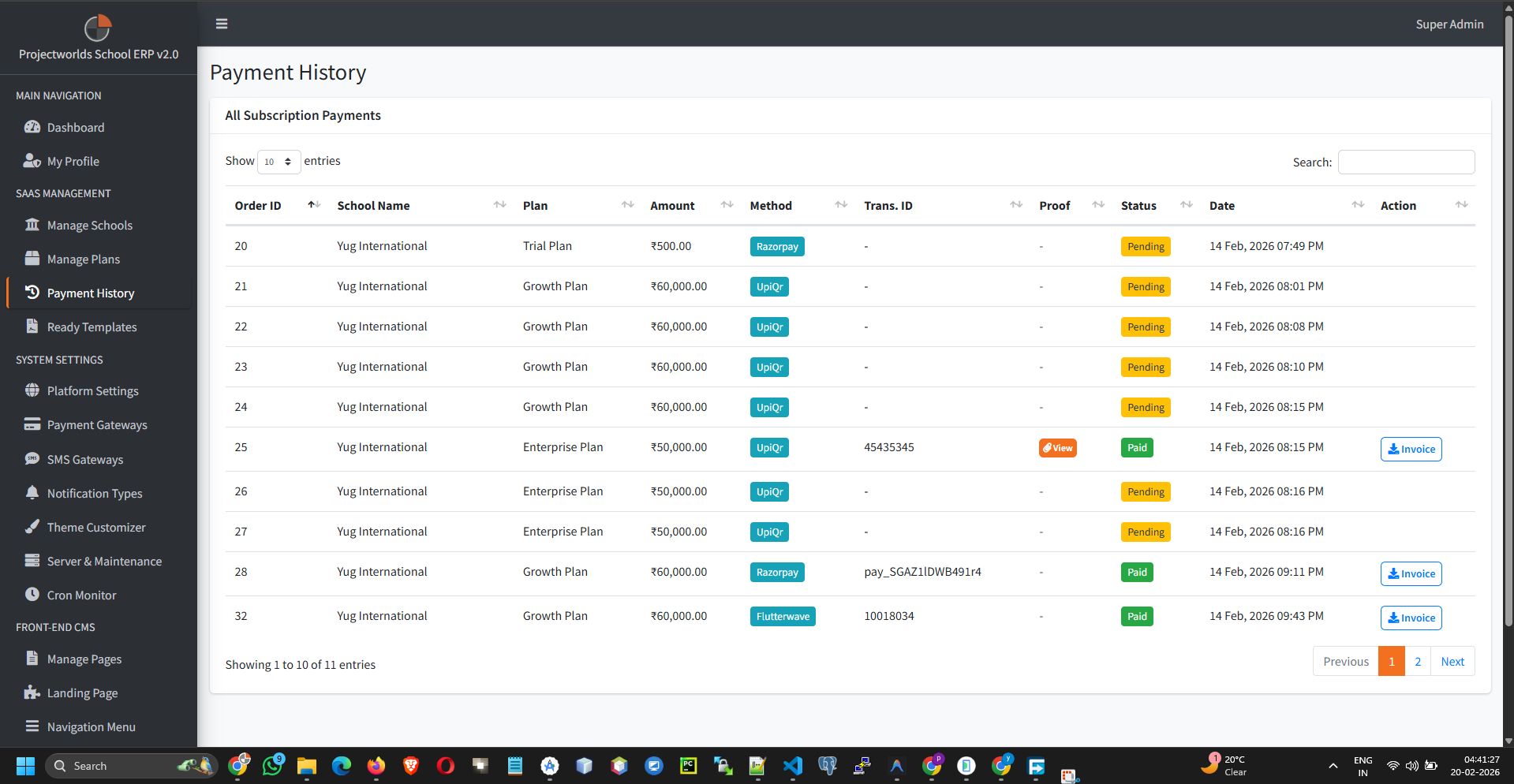
Track all subscription payments made by tenant schools. Download digital invoices and manually verify offline bank transfers.
Note: Payments made through automated gateways (like
Stripe or Razorpay) are verified and converted to "Paid" automatically. Offline payments require manual
superadmin intervention.
1. Viewing the Order Ledger
The main table displays a chronological ledger of all subscription attempts:
- Order ID / Date: The unique receipt number and transaction timestamp.
- School: The tenant school making the purchase.
- Plan Details: The name of the package and the billing cycle (Monthly/Yearly).
- Total Amount: The final transaction value in your configured currency.
- Payment Status: Paid (Green), Pending (Yellow), or Failed/Rejected (Red).
2. Downloading Digital Invoices
The system automatically generates a PDF invoice for every completed order.
- Locate a Paid order in the table.
- Click the blue Invoice button in the action column.
- The browser will automatically download a formatted PDF receipt containing your SaaS billing details and the school's information.
3. The Manual Payment Approval Flow
If you offer an "Offline Payment" or "Bank Transfer" method, schools will submit a transaction ID or upload a screenshot of their transfer receipt. Their order will remain Pending until you process it.
Step-by-Step Verification:
- Search the table for orders with a yellow Pending badge.
- Click the Verify Payment action button.
- A modal or specific page will display the payment proof (e.g., Reference Number #12345 or an uploaded image) submitted by the school admin.
- Check your actual bank account to confirm the funds have settled.
- Decision:
- If the funds cleared, click . This action will instantly mark the invoice as Paid, update the school's expiration date, and restore their platform access.
- If the proof is fake or funds did not arrive, click . The school's subscription will remain inactive.
Critical Financial Warning: Never click
"Approve" based solely on the uploaded screenshot. Always verify the transaction directly in your bank or
payment processor dashboard first.