School Management
The core module for managing all tenant schools on your SaaS platform. Oversee domains, subscriptions, deep analytics, and security for every institution.
1. School List Overview
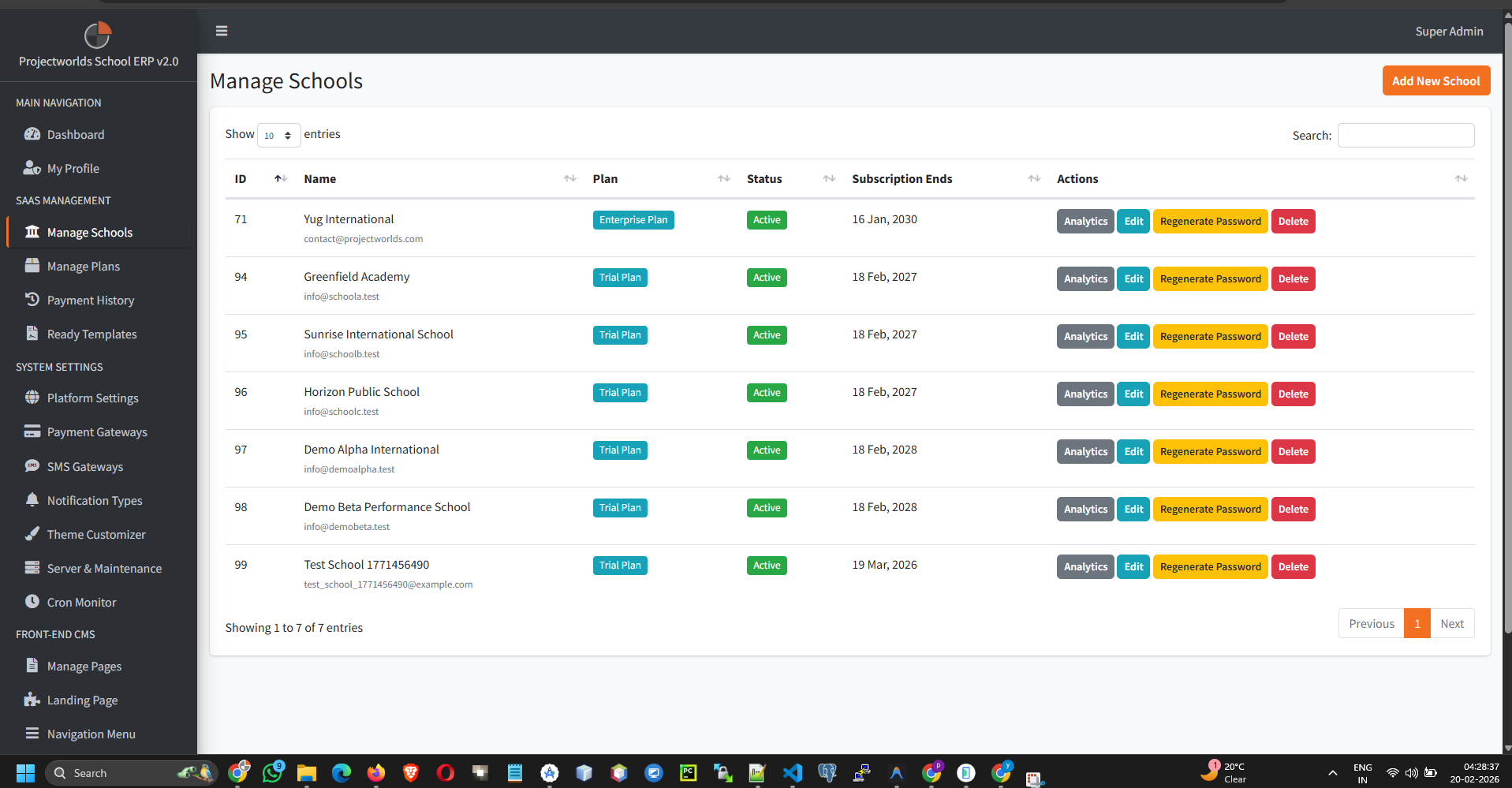
The main datatable displays all registered schools. Use the search bar to filter by name or email.
- ID & Name: The unique identifier and registered name of the school.
- Plan: The current active subscription tier.
- Status: Active, Inactive, or Suspended.
- Subscription Ends: The exact expiration date of their current plan.
2. Onboarding a New School
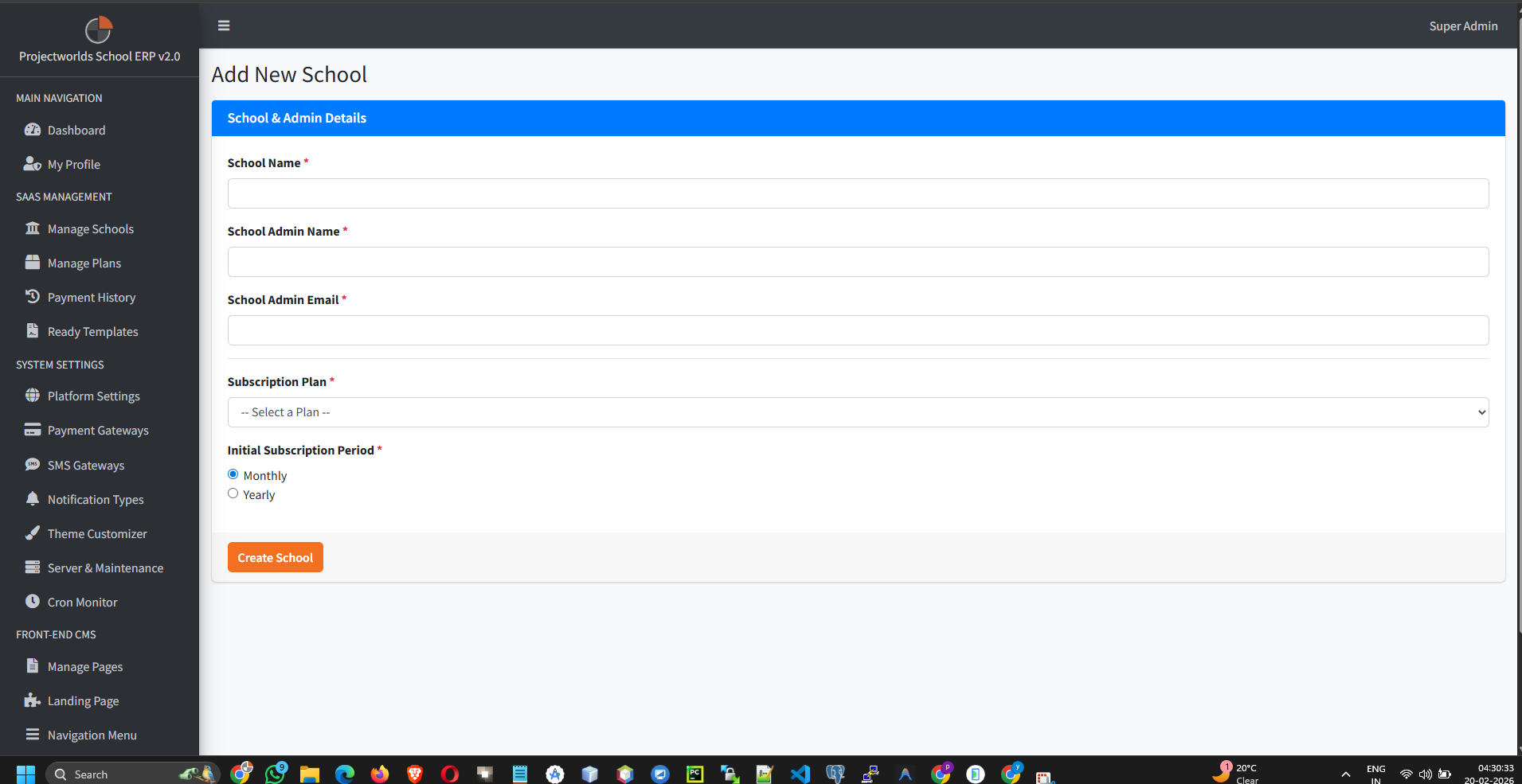
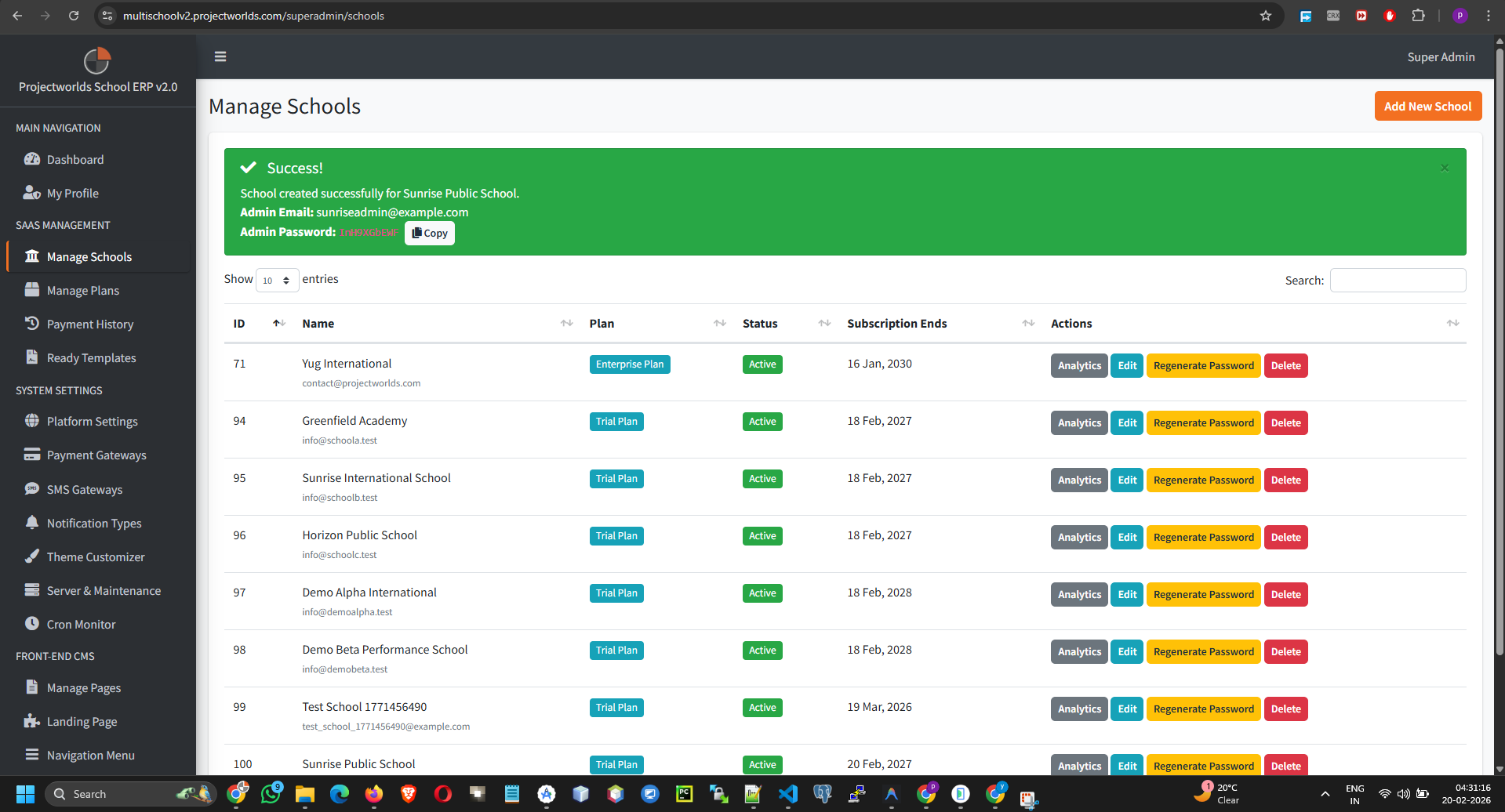
When manually creating a school, the system automatically generates secure credentials and applies the default dashboard theme.
- Click the action button: Add New School.
- Enter the School Name (this generates a unique URL slug automatically).
- Enter the Admin Name and a unique Admin Email Address.
- Select the initial Subscription Plan from the dropdown.
- Choose the Billing Cycle (Monthly or Yearly) to calculate the expiration date.
- Click Save.
3. Editing Configurations & Custom Domains
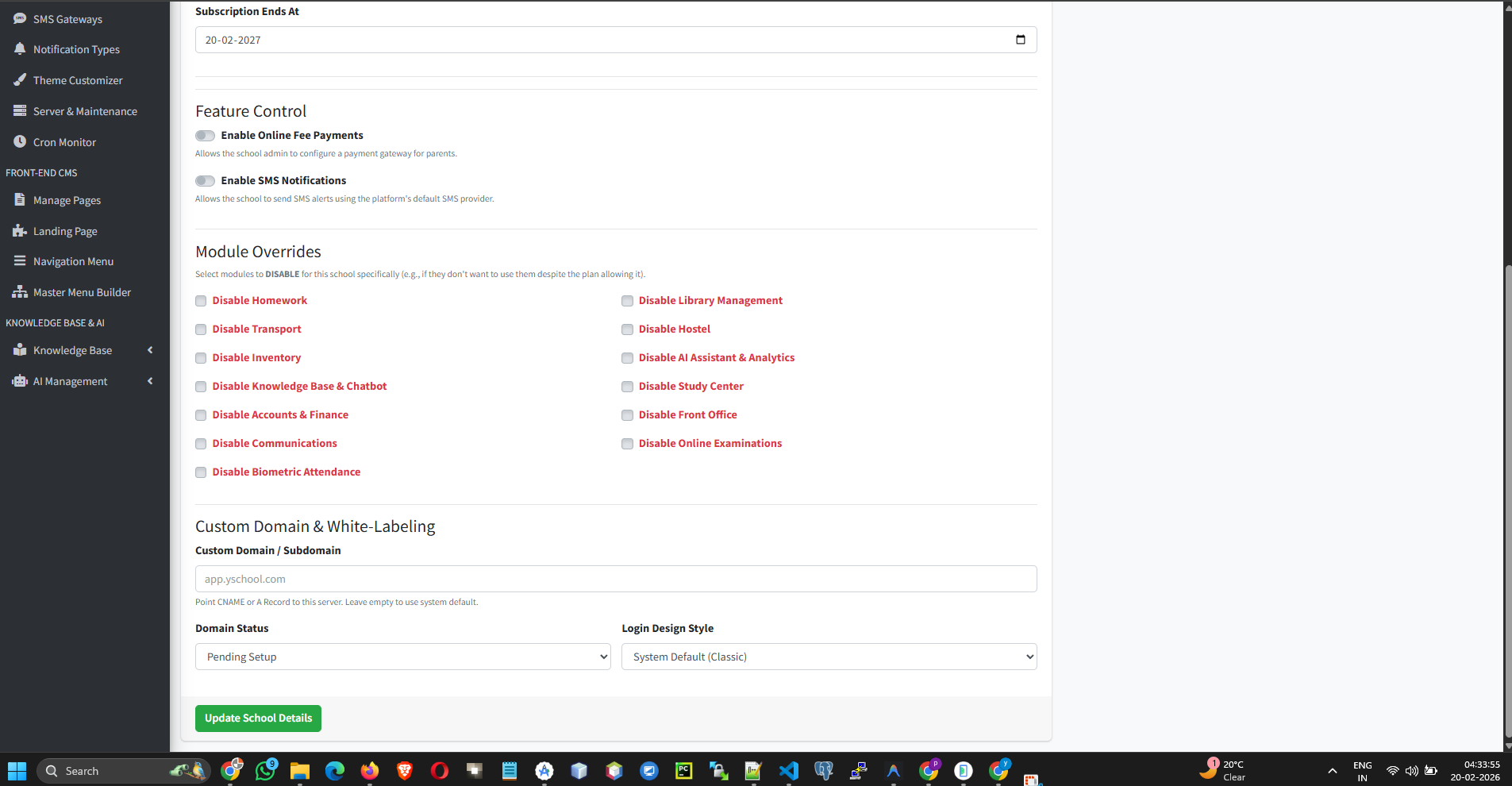
Editing a school allows you to modify advanced connection settings that are not available during initial creation.
- Find the school in the list and click the Edit button.
- Custom Domain Mapping:
- Enter a Custom Domain (e.g.,
portal.harvard.edu). - Update the Domain Status (Pending, Active, Failed).
- Enter a Custom Domain (e.g.,
- Branding Overrides: Select a specific Login Style (e.g., Modern Split, Centered Glass) overriding the global default.
- Feature Toggles: Manually enable/disable Online Fee Payments or SMS Notifications overriding their plan limits if necessary.
- Click Update Details.
4. Deep Analytics Dashboard
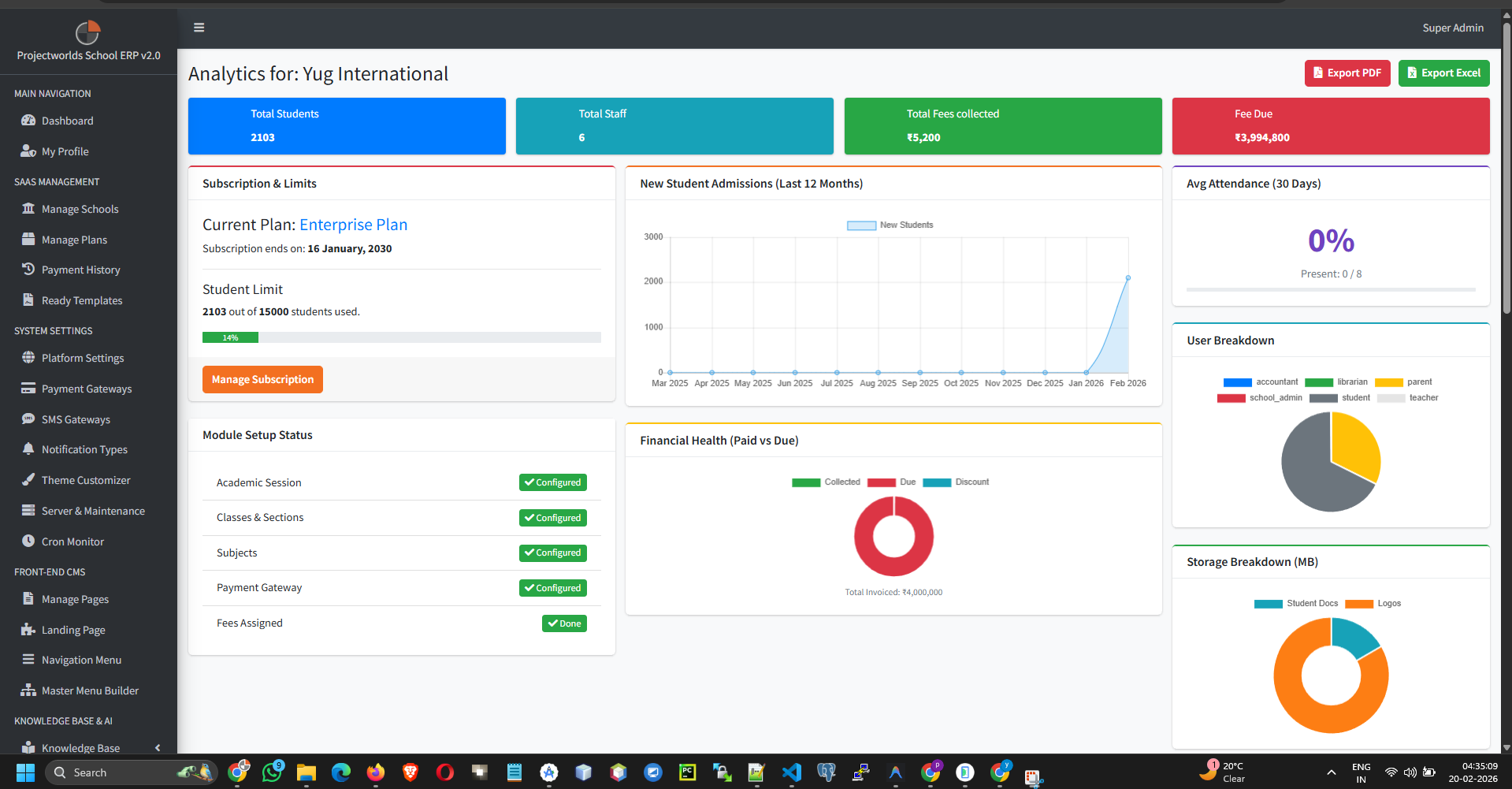
The analytics module provides a comprehensive X-Ray view into the health and usage of any specific school.
- Find the school in the list and click the Analytics button.
Key Metrics & Dashboards
- Headcounts: Instant view of Total Students and Total Staff currently registered.
- Storage Breakdown: A precise calculation of server disk space consumed by this specific school, broken down by Student Photos, Staff Docs, Logos, and Homework Attachments (in MB).
- Setup Status Checklist: A quick diagnostic checking if the school has configured vital requirements (Academic Session, Classes/Sections, Subjects, Payment Gateways, and Fee Assignments).
- User Breakdown: A doughnut chart showing the distribution of user types (Student, Parent, Teacher, Accountant, etc.).
- Financial Overview: Real-time sum of Total Fees Invoiced, Total Paid, Total Discounted, and Total Outstanding Due.
- Attendance Rate: The aggregated attendance percentage over the last 30 days.
Growth & Revenue Charts
Scroll down to view 12-month historical charts:
- Student Growth Chart: A bar/line chart plotting student registrations month-over-month for the past year.
- Fee Collection Chart: Tracks the total revenue collected exclusively by this school over the last 12 months.
- Calendar Events: A full calendar view pulling all holidays and events actively scheduled by the school.
5. Exporting School Reports
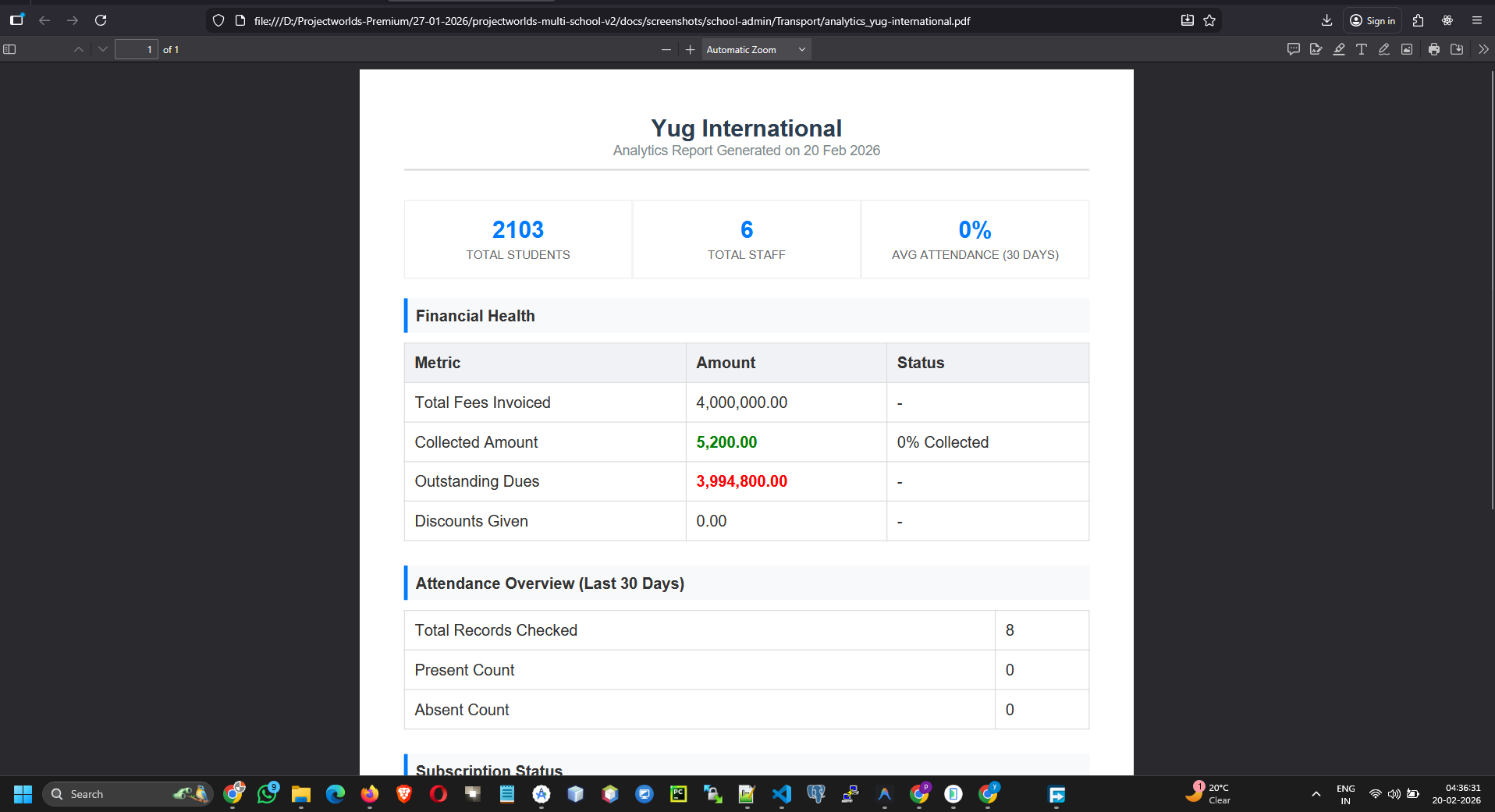
You can generate offline reports of a school's analytics.
- From the school's Analytics dashboard, locate the Export buttons at the top right.
- Click Export PDF to download a beautifully formatted visual report.
- Click Export Excel to download a raw `.xlsx` dump containing the exact financial and attendance values.
6. Security Actions
Regenerate Password
If a school administrator loses access and cannot use the "Forgot Password" feature, you can force-reset their credentials immediately.
- Locate the school in the main datatable.
- Click the yellow Regenerate Password button.
- The system instantly generates a new secure 10-character password.
- A green alert banner will appear at the top of the screen. Copy the new password immediately using the provided Copy button. The password will not be shown again.